- How do I pretty format XML?
xmllint --output newFile.xml --format oldFile.xml - How do I use tabs instead of spaces to format XML?
XMLLINT_INDENT=$'\t' xmllint --output newFile.xml --format oldFile.xml - How do I validate an XML against a DTD?
xmllint --dtdvalid http://java.sun.com/j2ee/dtds/web-app_2_2.dtd web.xml - How do I validate against a XSD schema?
xmllint --debugent --schema http://java.sun.com/xml/ns/j2ee/web-app_2_4.xsd web.xml
2013-03-13
xmllint: Format and Validate XML on Unix
xmllint can be used in Unix to format and validate XML.

2013-03-12
Android ListView Tutorial: simple_list_item_2 and SimpleAdapter
This tutorial demonstrates how to display an array of Java enum in the Android UI. This example is also applicable if using an array or List of JavaBeans or plain Java Objects.
Core Concepts Covered
1. Create class extending android.app.ListActivity.
For this tutorial, we will use an enum containing the 13 US original colonies. View the full UsState.java code listing.
private String stateName;
}
Each element in the List will correspond to a row in the Android UI list. The Map<String, String> maps the attributes on the Object to the android.R.id.text1 and android.R.id.text2 UI fields.
For example, if you input
4. Create an android.widget.SimpleAdapter in the ListActivity class from step 1 that connects the List<Map<String, String>> data to android.R.layout.simple_list_item_2.
View the full MainActivity.java code listing.
The final result will look like this

Source Code: Git | SVN | Download Zip
Core Concepts Covered
- Use the built-in android.R.layout.simple_list_item_2 to create an Android UI List.
- Use android.widget.SimpleAdapter to display an array of Java enum in the Android UI List.
- Create class extending android.app.ListActivity.
- Obtain data as an array of Java enum entries.
- Convert the array of enum into a List<Map<String, String>> format that will be used by the android.widget.SimpleAdapter constructor.
- Create an android.widget.SimpleAdapter that connects the List<Map<String, String>> data to android.R.layout.simple_list_item_2.
- Bind the android.widget.ListAdapter using the ListActivity.setListAdapter method.
1. Create class extending android.app.ListActivity.
public class MainActivity extends ListActivity {
@Override
protected final void onCreate(final Bundle savedInstanceState) {
super.onCreate(savedInstanceState);
}
}
For this tutorial, we will use an enum containing the 13 US original colonies. View the full UsState.java code listing.
public enum UsState {
DE("Delaware"),
PA("Pennsylvania"),
NJ("New Jersey");
private UsState(final String name) {
this.stateName = name;
}
public String getStateName() {
return this.stateName;
}
public String getAbbreviation() {
return this.name();
}
}
3. Convert the array of enum into a List<Map<String, String>> format that will be used by the android.widget.SimpleAdapter constructor.
private static final String TEXT1 = "text1";
private static final String TEXT2 = "text2";
private static final String TEXT2 = "text2";
private List<Map<String, String>> convertToListItems(final UsState[] states) {
final List<Map<String, String>> listItem =
new ArrayList<Map<String, String>>(states.length);
for (final UsState state: states) {
final Map<String, String> listItemMap = new HashMap<String, String>();
listItemMap.put(TEXT1, state.getStateName());
listItemMap.put(TEXT2, state.getAbbreviation());
listItem.add(Collections.unmodifiableMap(listItemMap));
}
return Collections.unmodifiableList(listItem);
}
The convertToListItems method converts an array of UsState into a List of Map. The List of Map will be used as part of the constructor for a SimpleAdapter.
For example, if you input
UsState[] =
[ DE("Delaware"),
PA("Pennsylvania"),
NJ("New Jersey")
];
the output will be
List<Map<String, String>> =
[ {text1="Delaware", text2="DE"},
{text1="Pennsylvania", text2="PA"},
{text1="New Jersey", text2="NJ"}
];
private ListAdapter createListAdapter(final UsState[] states) {
final String[] fromMapKey = new String[] {TEXT1, TEXT2};
final int[] toLayoutId = new int[] {android.R.id.text1, android.R.id.text2};
final List<Map<String, String>> list = convertToListItems(states);
return new SimpleAdapter(this, list,
android.R.layout.simple_list_item_2,
fromMapKey, toLayoutId);
}
In the createListAdapter method, the constructor of the SimpleAdapter binds the keys from the Map<String, String> created in convertToListItems to the android.R.id.text1 and text2. It associates "text1" from the fromMapKey array to the android.R.id.text1 in the toLayoutId array. When the ListView needs to show text for the android.R.id.text1 ID, it executes a Map.get("text1") to get the String value to display, e.g. Delaware.
5. Bind the android.widget.ListAdapter using the ListActivity.setListAdapter method.
public class MainActivity extends ListActivity {
@Override
protected final void onCreate(final Bundle savedInstanceState) {
super.onCreate(savedInstanceState);
final UsState[] states = UsState.values();
final UsState[] states = UsState.values();
final ListAdapter listAdapter = createListAdapter(states);
setListAdapter(listAdapter);
}
}
The final result will look like this

Source Code: Git | SVN | Download Zip
Android ListView Tutorial: simple_list_item_1
This tutorial demonstrates how to display a Java List of Strings in the Android UI. This example is also applicable if using an array of Strings.
Core Concepts Covered
1. Create class extending android.app.ListActivity.
For this tutorial, we will use a List of Strings containing the 13 US original colonies. View the full UsState.java code listing.
3. Create an android.widget.ArrayAdapter in the ListActivity class from step 1 that connects the List of Strings data to android.R.layout.simple_list_item_1.
View the full MainActivity.java code listing.
The final result will look like this
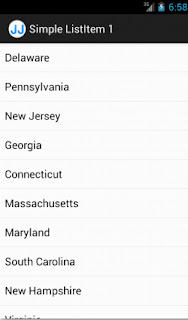
Source Code: Git | SVN | Download Zip
Core Concepts Covered
- Use the built-in android.R.layout.simple_list_item_1 to create an Android UI List.
- Use android.widget.ArrayAdapter to display a List of Strings data in the Android UI List.
- Create class extending android.app.ListActivity.
- Obtain data in List of Strings data structure.
- Create an android.widget.ArrayAdapter that connects the List of Strings data to android.R.layout.simple_list_item_1.
- Bind the android.widget.ListAdapter using the ListActivity.setListAdapter method.
1. Create class extending android.app.ListActivity.
public class MainActivity extends ListActivity {
@Override
protected final void onCreate(final Bundle savedInstanceState) {
super.onCreate(savedInstanceState);
}
}
For this tutorial, we will use a List of Strings containing the 13 US original colonies. View the full UsState.java code listing.
public final class UsState {
public static final List<String> ORIGINAL_COLONIES = initColonies();
private UsState() { }
private static List<String> initColonies() {
final List<String> colonies = new ArrayList<String>();
colonies.add("Delaware");
colonies.add("Pennsylvania");
colonies.add("New Jersey");
return Collections.unmodifiableList(colonies);
}
}
private ListAdapter createListAdapter(final List<String> list) {
return new ArrayAdapter<String>(this, android.R.layout.simple_list_item_1, list);
}
4. Bind the android.widget.ListAdapter using the ListActivity.setListAdapter method.
public class MainActivity extends ListActivity {
@Override
protected final void onCreate(final Bundle savedInstanceState) {
super.onCreate(savedInstanceState);
final ListAdapter listAdapter = createListAdapter(UsState.ORIGINAL_COLONIES);
setListAdapter(listAdapter);
}
}
The final result will look like this

Source Code: Git | SVN | Download Zip
2013-03-07
Built-in Android ListView layouts: Part 2
See Part 1 here.
Android has several built-in ListView layouts that you can easily use without defining your own layout XML.
The source code needs cleanup and better documentation but it should give you an idea how to use the built-in layout.
Android has several built-in ListView layouts that you can easily use without defining your own layout XML.
The source code needs cleanup and better documentation but it should give you an idea how to use the built-in layout.
|
android.R.layout.simple_list_item_activated_1
| |
| Source Code: Git | SVN | |

|
<?xml version="1.0" encoding="utf-8"?> <TextView xmlns:android= "http://schemas.android.com/apk/res/android" android:id="@android:id/text1" android:layout_width="match_parent" android:layout_height="wrap_content" android:textAppearance= "?android:attr/textAppearanceListItemSmall" android:gravity="center_vertical" android:paddingStart= "?android:attr/listPreferredItemPaddingStart" android:paddingEnd= "?android:attr/listPreferredItemPaddingEnd" android:background= "?android:attr/activatedBackgroundIndicator" android:minHeight= "?android:attr/listPreferredItemHeightSmall" /> |
|
android.R.layout.simple_list_item_activated_2
| |
| Source Code: Git | SVN | |
 |
<?xml version="1.0" encoding="utf-8"?>
<TwoLineListItem
  xmlns:android=
  "http://schemas.android.com/apk/res/android"
  android:paddingTop="2dip"
  android:paddingBottom="2dip"
  android:layout_width="match_parent"
  android:layout_height="wrap_content"
  android:background=
  "?android:attr/activatedBackgroundIndicator"
  android:minHeight=
  "?android:attr/listPreferredItemHeight"
  android:mode="twoLine"
>

  <TextView android:id="@android:id/text1"
    android:layout_width="match_parent"
    android:layout_height="wrap_content"
    android:layout_marginStart=
    "?android:attr/listPreferredItemPaddingStart"
    android:layout_marginTop="6dip"
    android:textAppearance=
    "?android:attr/textAppearanceListItem"
  />

  <TextView android:id="@android:id/text2"
    android:layout_width="match_parent"
    android:layout_height="wrap_content"
    android:layout_below="@android:id/text1"
    android:layout_alignStart="@android:id/text1"
    android:textAppearance=
    "?android:attr/textAppearanceSmall"
  />

</TwoLineListItem>
|
|
android.R.layout.simple_list_item_checked
| |
| Source Code: Git | SVN | |

|
<?xml version="1.0" encoding="utf-8"?> <CheckedTextView xmlns:android= "http://schemas.android.com/apk/res/android" android:id="@android:id/text1" android:layout_width="match_parent" android:layout_height= "?android:attr/listPreferredItemHeightSmall" android:textAppearance= "?android:attr/textAppearanceListItemSmall" android:gravity="center_vertical" android:checkMark="?android:attr/textCheckMark" android:paddingStart= "?android:attr/listPreferredItemPaddingStart" android:paddingEnd= "?android:attr/listPreferredItemPaddingEnd" /> |
|
android.R.layout.simple_list_item_multiple_choice
| |
| Source Code: Git | SVN | |

|
<?xml version="1.0" encoding="utf-8"?> <CheckedTextView xmlns:android= "http://schemas.android.com/apk/res/android" android:id="@android:id/text1" android:layout_width="match_parent" android:layout_height= "?android:attr/listPreferredItemHeightSmall" android:textAppearance= "?android:attr/textAppearanceListItemSmall" android:gravity="center_vertical" android:checkMark= "?android:attr/listChoiceIndicatorMultiple" android:paddingStart= "?android:attr/listPreferredItemPaddingStart" android:paddingEnd= "?android:attr/listPreferredItemPaddingEnd" /> |
|
android.R.layout.simple_list_item_single_choice
| |
| Source Code: Git | SVN | |

|
<?xml version="1.0" encoding="utf-8"?> <CheckedTextView xmlns:android= "http://schemas.android.com/apk/res/android" android:id="@android:id/text1" android:layout_width="match_parent" android:layout_height= "?android:attr/listPreferredItemHeightSmall" android:textAppearance= "?android:attr/textAppearanceListItemSmall" android:gravity="center_vertical" android:checkMark= "?android:attr/listChoiceIndicatorSingle" android:paddingStart= "?android:attr/listPreferredItemPaddingStart" android:paddingEnd= "?android:attr/listPreferredItemPaddingEnd" /> |
|
android.R.layout.two_line_list_item
| |
| Source Code: Git | SVN | |

|
<?xml version="1.0" encoding="utf-8"?> <LinearLayout xmlns:android= "http://schemas.android.com/apk/res/android" android:layout_width="match_parent" android:layout_height="wrap_content" android:orientation="vertical"> <TextView android:id="@android:id/text1" android:textSize="16sp" android:textStyle="bold" android:layout_width="match_parent" android:layout_height="wrap_content" /> <TextView android:id="@android:id/text2" android:textSize="16sp" android:layout_width="match_parent" android:layout_height="wrap_content" /> </LinearLayout> |
Built-in Android ListView layouts: Part 1
See Part Two here.
Android has several built-in ListView layouts that you can easily use without defining your own layout XML.
The source code needs cleanup and better documentation but it should give you an idea how to use the built-in layout.
Android has several built-in ListView layouts that you can easily use without defining your own layout XML.
The source code needs cleanup and better documentation but it should give you an idea how to use the built-in layout.
|
android.R.layout.activity_list_item
| |
| Source Code: Git | SVN | |

|
<?xml version="1.0" encoding="utf-8"?>
<LinearLayout
  xmlns:android=
  "http://schemas.android.com/apk/res/android"
  android:layout_width="match_parent"
  android:layout_height="wrap_content"
  android:paddingTop="1dip"
  android:paddingBottom="1dip"
  android:paddingStart="8dip"
  android:paddingEnd="8dip">

  <ImageView android:id="@+id/icon"
    android:layout_width="24dip"
    android:layout_height="24dip"
  />

  <TextView android:id="@android:id/text1"
    android:layout_width="wrap_content"
    android:layout_height="wrap_content"
    android:layout_gravity="center_horizontal"
    android:paddingStart=
    "?android:attr/listPreferredItemPaddingStart"
  />
</LinearLayout>
|
|
android.R.layout.simple_expandable_list_item_1
| |
| Source Code: Git | SVN | |

|
<?xml version="1.0" encoding="utf-8"?> <TextView xmlns:android= "http://schemas.android.com/apk/res/android" android:id="@android:id/text1" android:layout_width="match_parent" android:layout_height= "?android:attr/listPreferredItemHeight" android:paddingStart= "?android:attr/expandableListPreferredItemPaddingLeft" android:textAppearance= "?android:attr/textAppearanceListItem" android:gravity="center_vertical" /> |
|
android.R.layout.simple_expandable_list_item_2
| |
| Source Code: Git | SVN | |

|
<?xml version="1.0" encoding="utf-8"?>
<TwoLineListItem
  xmlns:android=
  "http://schemas.android.com/apk/res/android"
  android:layout_width="match_parent"
  android:layout_height=
  "?android:attr/listPreferredItemHeight"
  android:paddingTop="2dip"
  android:paddingBottom="2dip"
  android:paddingStart=
  "?android:attr/expandableListPreferredItemPaddingLeft"
  android:mode="twoLine"
>

  <TextView android:id="@android:id/text1"
    android:layout_width="match_parent"
    android:layout_height="wrap_content"
    android:layout_marginTop="6dip"
    android:textAppearance=
    "?android:attr/textAppearanceListItem"
  />

  <TextView android:id="@android:id/text2"
    android:layout_width="match_parent"
    android:layout_height="wrap_content"
    android:layout_below="@android:id/text1"
    android:layout_alignStart="@android:id/text1"
    android:textAppearance=
    "?android:attr/textAppearanceSmall"
  />

</TwoLineListItem>
|
|
android.R.layout.simple_list_item_1
| |
| Source Code: Git | SVN | Download Zip | Tutorial | |

|
<?xml version="1.0" encoding="utf-8"?> <TextView xmlns:android= "http://schemas.android.com/apk/res/android" android:id="@android:id/text1" android:layout_width="match_parent" android:layout_height="wrap_content" android:textAppearance= "?android:attr/textAppearanceListItemSmall" android:gravity="center_vertical" android:paddingStart= "?android:attr/listPreferredItemPaddingStart" android:paddingEnd= "?android:attr/listPreferredItemPaddingEnd" android:minHeight= "?android:attr/listPreferredItemHeightSmall" /> |
|
android.R.layout.simple_list_item_2
| |
| Source Code: Git | SVN | Download Zip | Tutorial | |

|
<?xml version="1.0" encoding="utf-8"?>
<TwoLineListItem
  xmlns:android=
  "http://schemas.android.com/apk/res/android"
  android:layout_width="match_parent"
  android:layout_height="wrap_content"
  android:minHeight=
  "?android:attr/listPreferredItemHeight"
  android:mode="twoLine"
>

  <TextView
    android:id="@android:id/text1"
    android:layout_width="match_parent"
    android:layout_height="wrap_content"
    android:layout_marginStart=
    "?android:attr/listPreferredItemPaddingStart"
    android:layout_marginTop="8dip"
    android:textAppearance=
    "?android:attr/textAppearanceListItem"
  />

  <TextView
    android:id="@android:id/text2"
    android:layout_width="match_parent"
    android:layout_height="wrap_content"
    android:layout_below="@android:id/text1"
    android:layout_alignStart="@android:id/text1"
    android:textAppearance=
    "?android:attr/textAppearanceSmall"
  />

</TwoLineListItem>
|
Subscribe to:
Posts (Atom)